Folders, like iPhone.
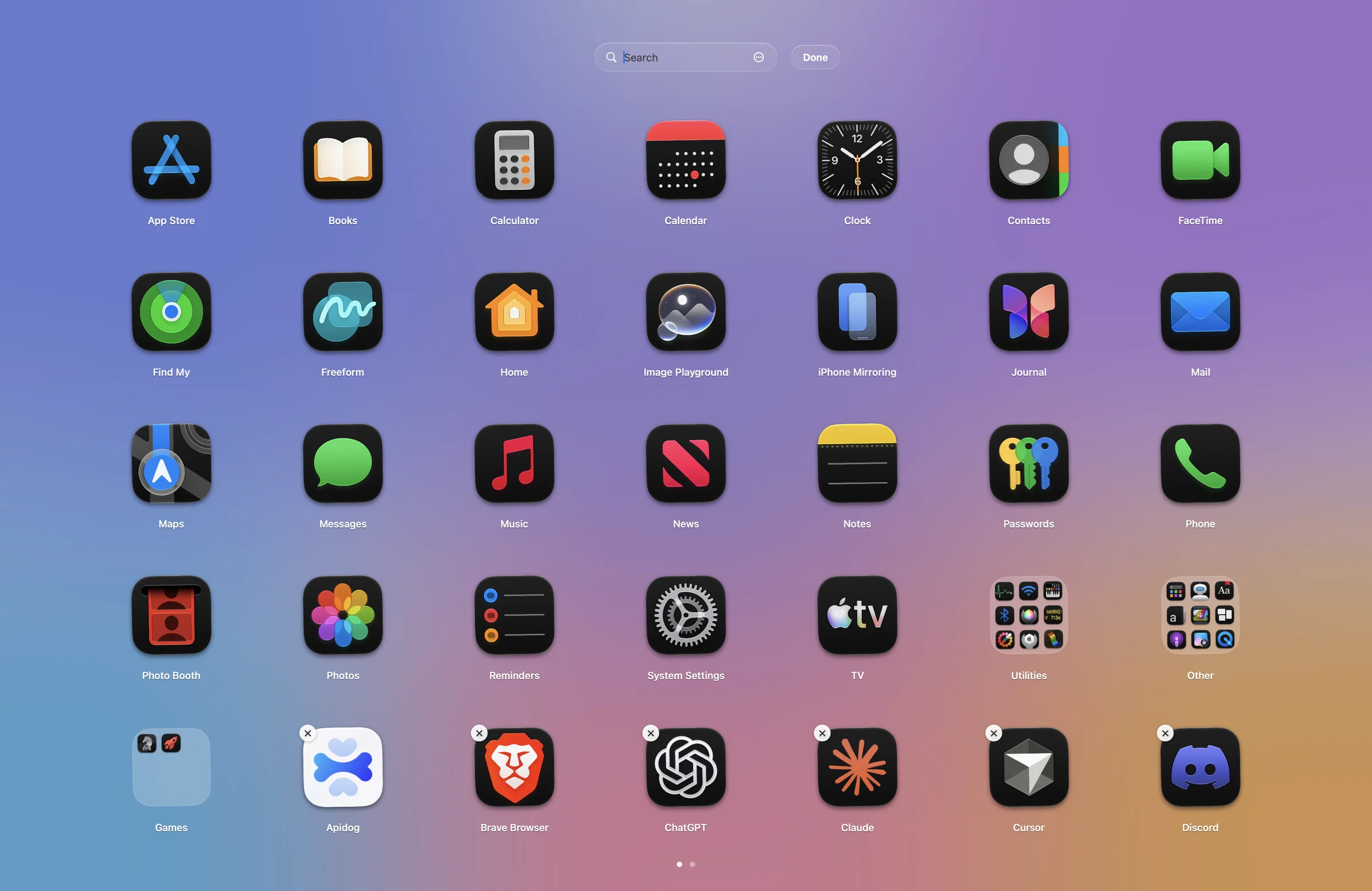
Press and hold to make the icons jiggle. Drop an app onto another and a folder forms.

Halo Launch
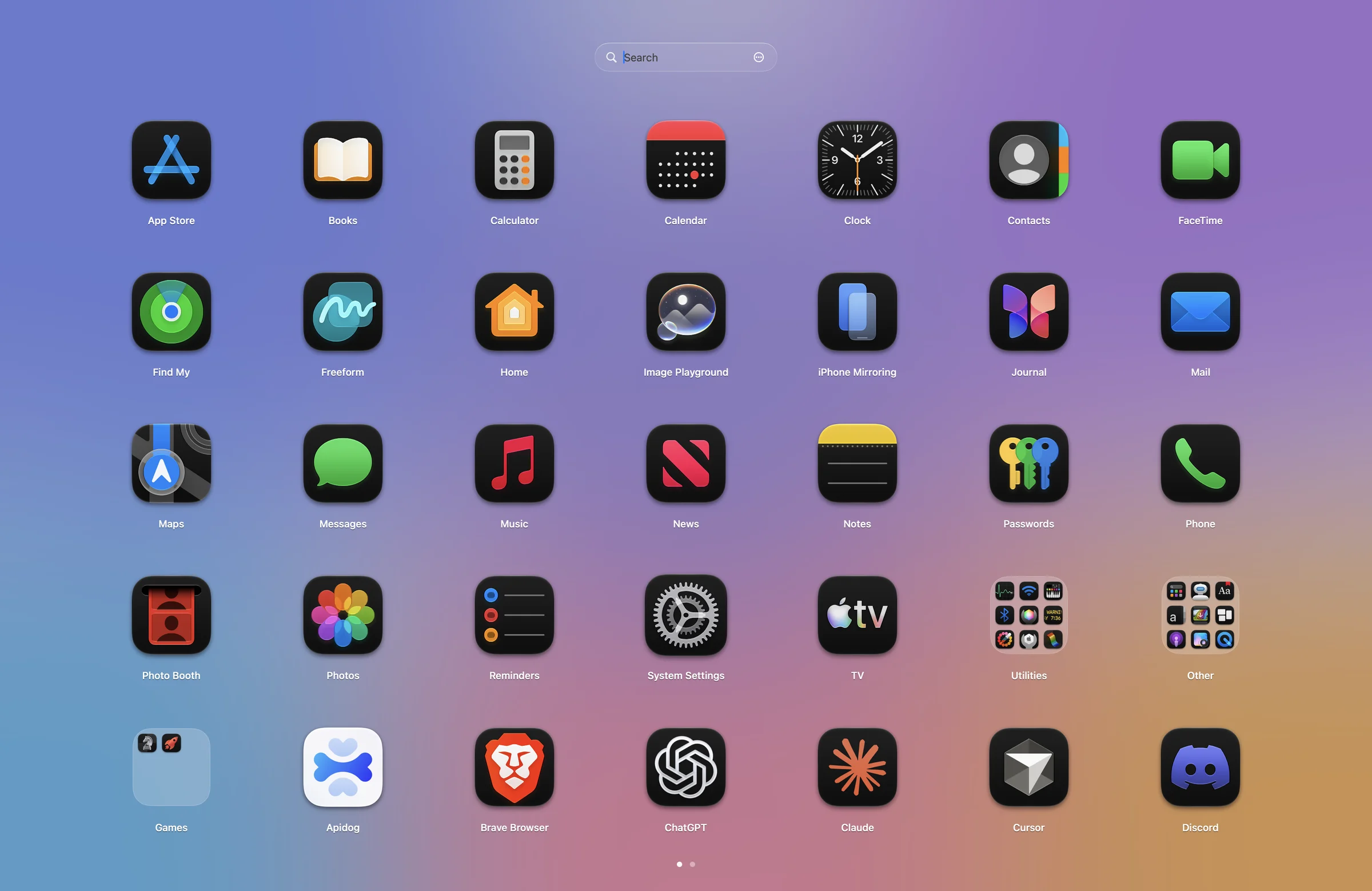
Launchpad left macOS 26. Halo Launch brings it back — faster, smarter and exactly as you remember it, with folders, pages and a frosted desktop.

Press and hold to make the icons jiggle. Drop an app onto another and a folder forms.
Pinch with four fingers, press F4 or the Spotlight key, push into a hot corner, or pick a shortcut.
Just type. Prefix matches come first, accents are ignored, the arrow keys do the rest.
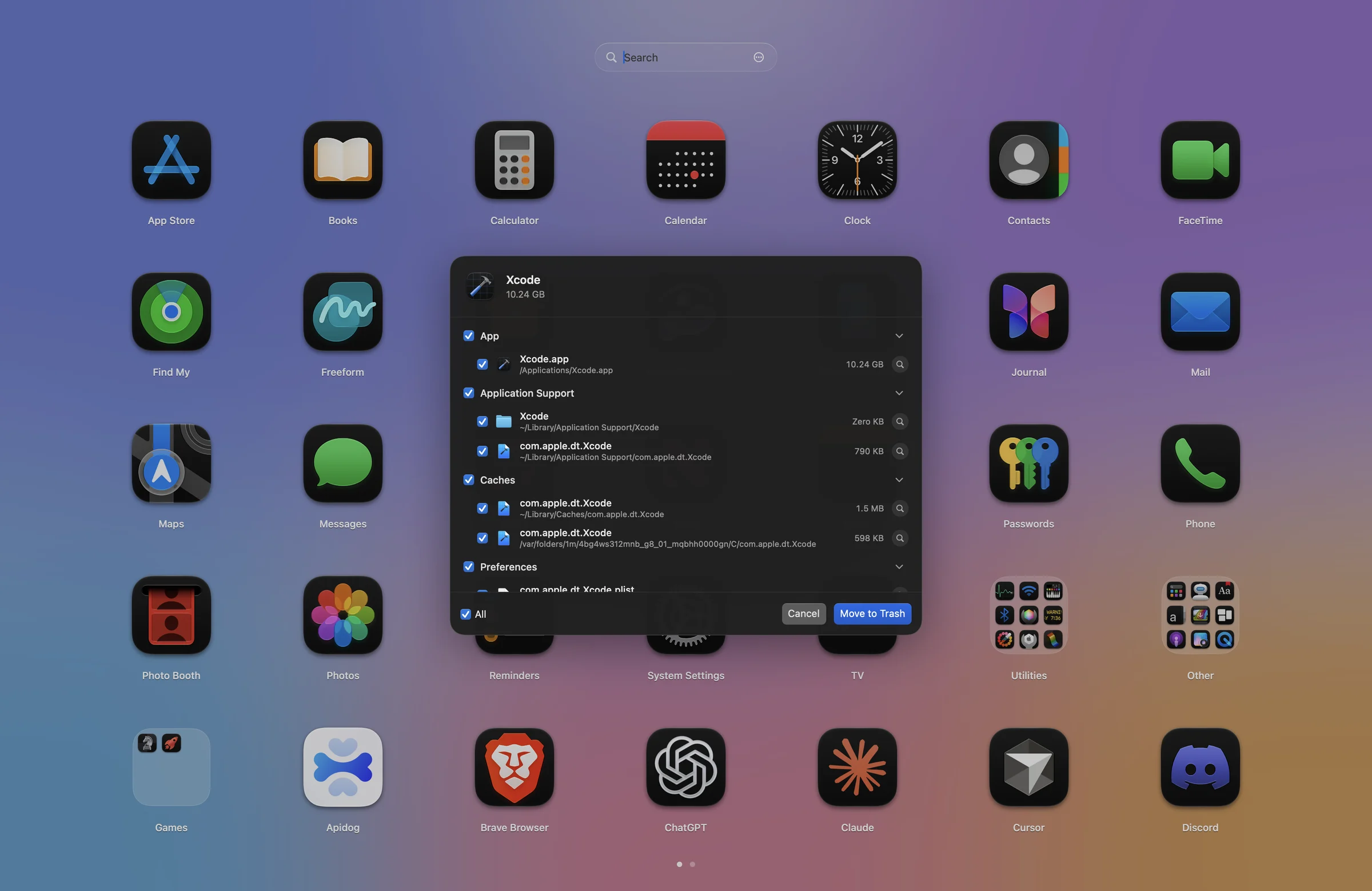
Remove an app with everything it left behind — caches, preferences, containers and helpers.
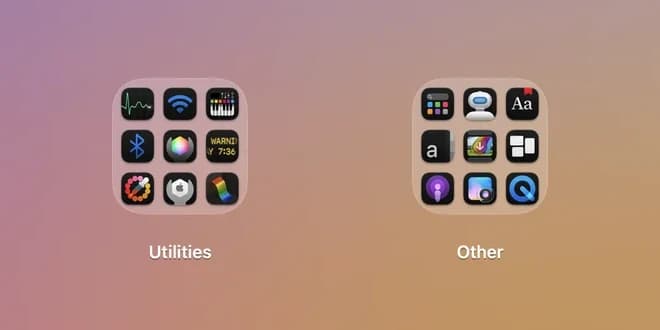
Utilities, Other and Games folders out of the box, or import your old Launchpad layout.
No Dock icon, no clutter. It opens in a blink and gets out of the way with Esc.
Compare
Here is what changes when Halo is running.
Apps
macOS alone
With Halo
| Feature | macOS alone | With Halo |
|---|---|---|
| Launchpad-style app gridmacOS alone: Removed in macOS 26 | Pinch or F4 | |
| Uninstall with leftoversmacOS alone: Manual | One click |
macOS 26 replaced Launchpad with a list of apps. Halo Launch brings back the full-screen grid, pages and folders, and adds search and a clean uninstaller.
Yes. Pinch with four fingers or press F4. Turn off the system Apps gesture in Trackpad settings so only Halo Launch opens.
Yes. Halo Launch imports pages and folders from the classic Launchpad, or starts with Utilities, Other and Games folders.
The app plus the files it left behind — caches, preferences, containers, logs and helpers. You review the list, and everything goes to the Trash, so you can restore it.
Only if you want. By default it stays invisible until you open it, with an optional menu bar icon.
Launchpad, reimagined. Built for macOS 26, runs on macOS 14 or later.
Halo Launch is coming soonmacOS 14 or later
